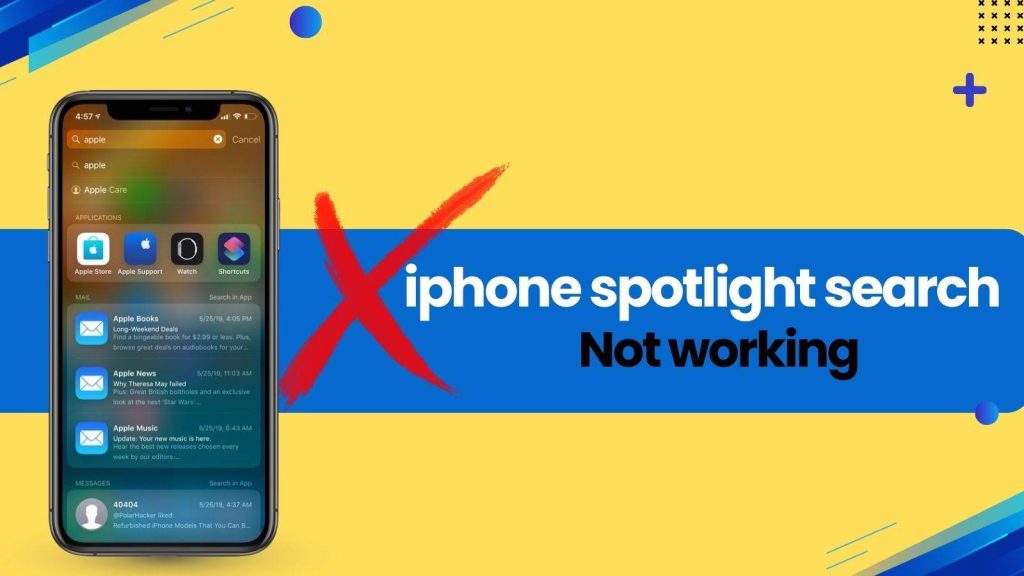
After installing iOS 18, many iPhone users, including myself, noticed that one of the most useful daily features suddenly stopped behaving normally. Spotlight Search, which is supposed to instantly locate apps, messages, photos, contacts, and system settings, either shows incomplete results or nothing at all. This unexpected malfunction leaves users frustrated because it directly affects productivity and everyday phone usage.
If you are currently searching for a reliable solution because your iphone spotlight search not working, you are not alone. This issue has been widely reported across different iPhone models, including the latest devices as well as older supported models. The encouraging part is that most of the time, this problem is software-related and can be resolved within minutes without deleting your data.
Find why the issue happens, what it affects, and how you can fix it step by step using proven and safe methods.
What Is iPhone Spotlight Search and Why It Matters in iOS 18
Spotlight Search acts as the central command tool of the iPhone. It allows users to access almost everything stored on their device without manually opening multiple apps, scrolling through folders, or digging into settings. From quickly launching apps to finding messages, photos, contacts, emails, and notes, Spotlight is designed to save time and streamline everyday interactions.
In iOS 18, Spotlight has become even more intelligent, offering:
- Smarter Search Predictions: It learns from your usage patterns and suggests apps, contacts, and documents before you finish typing.
- Context-Based Suggestions: Spotlight predicts what you might need based on your location, time of day, and prior activities.
- Enhanced Photo Recognition: You can search for objects, scenes, and even text within photos with improved accuracy.
- Faster App Access: Apps load faster when launched through Spotlight due to improved indexing.
- Integrated Siri Recommendations: Siri proactively suggests content, shortcuts, and reminders directly in Spotlight results.
- Cross-App Search: Spotlight now searches through more apps, including third-party apps with proper permissions, giving a complete overview of all relevant data.
When Spotlight fails, iPhone users must manually navigate multiple screens, app folders, or search individually within each app, making even simple tasks slow and inconvenient. That is why iphone spotlight search not working is not just a minor bug—it directly affects productivity, workflow, and overall device usability.
Common Reasons Why Spotlight Search Is Not Working on iOS 18
Understanding the root causes helps in choosing the right solution efficiently.
- Software Instability: New system updates may introduce conflicts in system files or disrupt the indexing engine. Even minor corruption during updates can cause Spotlight to fail.
- Disabled Permissions: Updates can reset Siri & Search permissions, preventing apps or content from appearing in results.
- Low Storage: iOS requires free space for indexing. When storage is low, Spotlight may stall or skip scanning some apps and data.
- iCloud Sync Issues: Contacts, messages, notes, and documents may fail to appear in search results if iCloud sync is blocked or delayed.
- Corrupted Cache Files: Incomplete updates or app crashes can leave behind corrupted cache data that disrupts indexing.
- Third-Party App Conflicts: Certain apps can interfere with Spotlight indexing if they are not fully compatible with iOS 18.
- Background App Restrictions: Settings like Low Power Mode or background app refresh limits can delay indexing, making Spotlight appear broken.
- Network Connectivity Issues: Since Spotlight also fetches cloud-based results, poor or misconfigured networks can prevent some search results from appearing.
Quick Checks Before Applying Fixes (1-Minute Troubleshooting Guide)
Before moving to deeper troubleshooting, perform these quick checks:
- Search for basic system apps like Settings, Camera, or Safari. If they appear, the issue may be app-specific or permission-related.
- Note any slow performance, freezing, or crashes in Spotlight. These indicate cache or memory issues.
- Make sure Low Power Mode is off; prolonged battery-saving mode can prevent background indexing.
- Confirm that your iPhone has sufficient storage, ideally at least 3–4 GB free.
- Test network connectivity to ensure iCloud and Siri data can sync properly.
If Spotlight still doesn’t function after these checks, proceed with the following structured solutions.
Fix 1: Restart Your iPhone to Refresh Spotlight Indexing
Restarting your iPhone clears temporary system memory and reloads background processes, including Spotlight’s indexing engine.
- Restarting helps remove memory conflicts and temporary file corruption caused by updates.
- It also reinitializes background services that handle indexing, search suggestions, and Siri integration.
- Best for users who notice iphone spotlight search not working immediately after updating iOS 18.
Even if this doesn’t fully fix the issue, it prepares your device for deeper troubleshooting and improves system stability.
Fix 2: Turn Spotlight Search Off and On Again in Settings
Disabling and re-enabling Spotlight resets how it interacts with installed apps and system content.
- Go to Settings > Siri & Search, toggle off Show App in Search for all apps, then toggle back on.
- Restart your device afterward to allow Spotlight to rebuild its database.
- This often resolves permission conflicts and forces the indexing engine to refresh automatically.
For many users, this simple method restores normal Spotlight functionality within minutes.
Fix 3: Enable Siri & Search for All Apps Manually
When specific apps disappear from search results:
- Go to Settings > Siri & Search > [App Name]
- Enable Show in Search, Show Suggestions, and Allow on Lock Screen
- Wait a few minutes for the system to re-index the app content
This is particularly useful for apps like social media, banking, productivity tools, and messaging apps that rely on Spotlight for quick access.
Fix 4: Check and Free Up iPhone Storage for Proper Indexing
Spotlight requires free storage to temporarily store indexing files:
- Go to Settings > General > iPhone Storage to check available space
- Delete unused apps, clear large video files, or move photos to iCloud or an external device
- Freeing up 3–4 GB or more ensures that Spotlight can rebuild its database efficiently
This not only fixes Spotlight but also improves overall system performance and responsiveness.
Fix 5: Reset Network Settings to Resolve Search Connection Errors
Spotlight fetches some data from iCloud, Mail, and Siri servers:
- Go to Settings > General > Transfer or Reset iPhone > Reset > Reset Network Settings
- This removes corrupted Wi-Fi, VPN, or cellular settings without affecting personal files
- After resetting, reconnect to your networks to restore proper syncing
This often resolves hidden connectivity issues that prevent search results from appearing.
Fix 6: Update to the Latest iOS 18 Patch to Fix Spotlight Bugs
Apple releases periodic updates to address bugs:
- Go to Settings > General > Software Update
- Install the latest version of iOS 18 to ensure Spotlight indexing issues are patched
- Updates often fix internal engine errors and improve performance of search, Siri, and app indexing
This step can restore Spotlight without the need for more invasive fixes.
Fix 7: Rebuild Spotlight Index by Changing Language Settings
Changing the system language triggers a full reindex:
- Go to Settings > General > Language & Region
- Temporarily switch to a different language and restart the device
- Switch back to your original language and allow at least 10–15 minutes for indexing
This method forces iOS to scan apps, contacts, and documents from scratch, often resolving persistent iphone spotlight search not working issues.
Fix 8: Sign Out and Sign Back Into iCloud to Resync Search Data
Spotlight relies heavily on iCloud for syncing contacts, notes, reminders, and emails:
- Go to Settings > Apple ID > Sign Out, then sign back in
- Refreshes cloud authentication and rebuilds local databases
- Works well for users with multiple Apple devices or those who rely heavily on iCloud
Fix 9: Reset All Settings Without Deleting Data
Resetting all settings fixes misconfigurations while keeping your personal data intact:
- Go to Settings > General > Transfer or Reset iPhone > Reset > Reset All Settings
- This resets display, privacy, keyboard, and Siri settings
- Corrects permission conflicts and often restores Spotlight when other fixes fail
Fix 10: Use Apple Support or DFU Restore as a Last Resort
If none of the above fixes work:
- Contact Apple Support to run diagnostics and identify hidden issues
- Consider a DFU (Device Firmware Update) restore, which reinstalls iOS completely
- Back up your data first, as DFU restores erase all content and settings
This is the most extreme but reliable solution for deeply corrupted system files affecting Spotlight.
How to Prevent Spotlight Search Issues After Future iOS Updates
Follow these simple steps to reduce the risk of iphone spotlight search not working after future iOS updates:
1. Always Create Backups
Use iCloud or iTunes/Finder to back up your iPhone before updating. This ensures your data is safe and allows for smooth restoration if anything goes wrong during the update.
2. Avoid Updating When Storage Is Low
Keep at least 3–4 GB free before updating. Low storage can cause incomplete installs and prevent Spotlight from rebuilding its index properly.
3. Let Your iPhone Rest After Updates
After installing a major update, leave your phone idle for 10–30 minutes. This allows background indexing to complete without interruption.
4. Restart Your Device
Restarting refreshes system memory, reloads background processes, and ensures Spotlight starts fresh after the update.
5. Check Siri & Search Permissions
Verify Settings > Siri & Search to ensure frequently used apps are enabled for search and suggestions. Proper permissions keep Spotlight indexing all your content.
6. Keep Your iPhone Updated
Install minor iOS patches promptly, as they often fix bugs affecting Spotlight and other system features.
7. Maintain Adequate Free Storage
Regularly clear unused apps and large files to ensure Spotlight indexing runs smoothly over time.
By following these steps, you can minimize Spotlight issues and keep your iPhone running efficiently after any iOS update.
FAQs
1. Why does Spotlight Search stop showing new apps on iOS 18?
Spotlight Search relies on indexing to display apps. On iOS 18, newly installed apps may not appear immediately because the system index takes time to update in the background. Delays or incomplete indexing due to low storage, restricted background app refresh, or temporary system cache corruption can prevent new apps from appearing. Restarting the device or re-enabling Siri & Search often resolves this.
2. Can a third-party app interfere with Spotlight Search?
Yes. Certain apps that modify system behavior, like VPNs, security apps, or app managers, can block Spotlight indexing. These apps may restrict background processes or data access. Temporarily disabling such apps and restarting your iPhone can help determine if they are the cause.
3. Does Spotlight Search work differently for encrypted or hidden files?
Spotlight cannot index apps or files that are encrypted, hidden, or stored in protected system directories. Files in third-party secure apps may not appear in search results, which is expected behavior. To include these, you may need to use the app’s internal search rather than Spotlight.
4. Can iCloud settings cause Spotlight Search to stop working?
Yes. If iCloud Drive or iCloud syncing for apps like Contacts, Notes, or Mail is turned off, Spotlight cannot access cloud-based content. Ensuring iCloud Drive is enabled and the apps you want searchable are syncing properly can restore full functionality.
5. Why is Spotlight Search slow even when it shows results?
Slow Spotlight Search often occurs when the system is still indexing after an iOS update, when storage is nearly full, or when background app refresh is restricted. Allowing the iPhone to idle for indexing, freeing up storage, and disabling Low Power Mode can improve speed.
6. Does using Low Power Mode affect Spotlight Search?
Yes. Low Power Mode limits background tasks, including indexing for Spotlight. While it helps conserve battery, search results may be delayed or incomplete until the phone is fully charged and Low Power Mode is turned off.
7. Can Siri Suggestions affect Spotlight Search results?
Absolutely. Spotlight is closely linked with Siri Suggestions. If Siri Suggestions are disabled, Spotlight may not provide predictive results or app recommendations. Enabling Settings → Siri & Search → Suggestions in Search ensures full functionality.
8. Is it normal for Spotlight Search to rebuild the index after a major iOS update?
Yes. After major updates like iOS 18, the system rebuilds its search index in the background. Depending on the number of apps, contacts, and files, this process can take minutes to hours. Users may notice temporarily incomplete results during this period.
9. Can Spotlight Search stop working due to a corrupted system cache?
Yes. A corrupted cache or temporary system file can block the indexing engine, causing Spotlight to fail. Restarting the device, resetting network settings, or performing a “Reset All Settings” usually clears these caches and restores functionality.
10. Does Spotlight Search work differently for older iPhone models on iOS 18?
Yes. Older models like iPhone 8 or iPhone X may experience slower indexing or temporary Spotlight issues due to limited RAM and storage. While functionality is maintained, response times may be slower compared to newer devices. Optimizing storage and minimizing background processes improves performance.