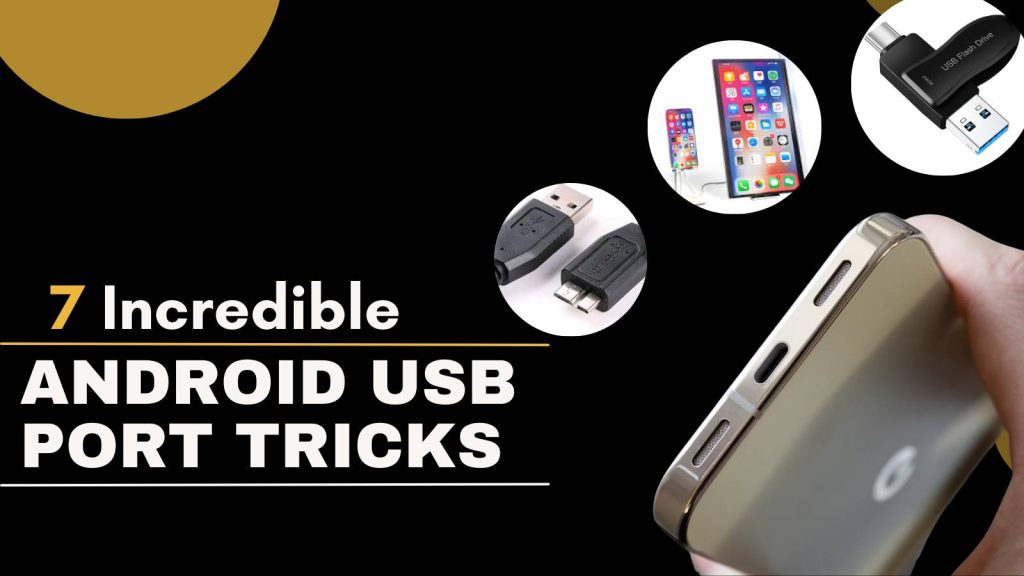
The USB port on your Android device is often overlooked as merely a charging point, but in reality, it can unlock a world of possibilities. With the right techniques and accessories, your Android USB port can enhance productivity, entertainment, and even development tasks.
Find 7 incredible Android USB port tricks that go beyond just charging your device, allowing you to fully leverage its capabilities.
1. Transfer Files Quickly Between Devices
One of the most practical uses of your Android USB port is fast file transfer. While wireless solutions like Bluetooth or cloud services are convenient, they are often slower for large files. Using a USB cable, you can transfer photos, videos, documents, and other data directly between your Android device and a computer.
To do this, connect your Android to a PC via a USB cable and select File Transfer or MTP (Media Transfer Protocol) mode. This allows your computer to recognize your phone as a storage device. For even faster transfers, USB 3.0 or USB-C cables can significantly reduce transfer times. Some Android phones also support USB OTG (On-The-Go), allowing direct transfer between devices without a computer, which is especially useful when sharing files on the go.
Tips: Always use high-quality cables to prevent data corruption, and avoid transferring files while your phone battery is critically low.
2. Connect Your Phone to External Displays
Your Android phone can double as a mini-computer by connecting it to an external display. Using a USB-C to HDMI or DisplayPort adapter, you can mirror your Android screen to a TV, monitor, or projector. Many modern Android devices also support Desktop Mode, similar to Samsung DeX, which transforms your phone interface into a desktop-like environment.
This feature is perfect for streaming movies, giving presentations, or even browsing the internet on a larger screen. With a USB connection, you can also use external keyboards and mice simultaneously, making your phone a portable workstation.
Tip: Ensure your device supports DisplayPort Alternate Mode over USB-C for seamless video output.
3. Use Your Phone as a USB Storage Device
Your Android device can function as a portable USB drive using the USB port. By enabling USB Mass Storage mode, your device becomes accessible to any computer, allowing you to read and write files directly. This is particularly useful if you want to carry work documents, presentations, or multimedia files without relying on cloud storage.
For better organization, create dedicated folders for work, media, and personal files. Some Android phones allow dual access, meaning you can transfer files while still using your phone normally. This trick also helps when troubleshooting or backing up data.
Caution: Always eject your device safely to avoid data corruption when disconnecting from a computer.
4. Connect External Accessories
Thanks to USB On-The-Go (OTG) support, your Android phone can connect to a variety of external accessories such as keyboards, mice, and game controllers. This capability opens up incredible productivity and entertainment options. For example, you can type documents more efficiently using a physical keyboard or play Android games with a compatible game controller for a console-like experience.
USB OTG adapters are inexpensive and easy to use. Simply plug the adapter into your Android device, then connect your accessory. Most modern Android devices automatically recognize the connected accessory and allow immediate use.
Tip: Check compatibility before purchasing accessories, as not all devices support every peripheral.
5. Charge Other Devices with Reverse Charging
Many modern Android phones support reverse charging, which allows your device to act as a power bank. Using your USB port, you can charge other devices, such as smartphones, wireless earbuds, or smartwatches. This is particularly useful during emergencies when another device runs out of battery.
To enable reverse charging, go to your phone’s Settings > Battery > Reverse Charging (or similar, depending on your device). Connect the device to be charged via a USB cable, and your phone will start transferring power.
Safety tip: Avoid reverse charging for extended periods to prevent overheating, and only use certified cables to protect both devices.
6. Debug and Develop Apps Using USB
For developers or tech enthusiasts, your Android USB port is essential for app testing and debugging. By enabling USB Debugging in the Developer Options, you can connect your Android device to a computer and use tools like Android Studio to run, test, and debug apps directly on your phone.
This feature is invaluable for developers because it allows real-time monitoring of app performance, log collection, and error tracking. Even non-developers can benefit from this trick when using advanced file management apps, rooting tools, or flashing firmware.
Important: Always disable USB Debugging when not in use to maintain device security.
7. Use USB Ports for Audio and MIDI Devices
Your Android phone can serve as a portable music production hub. Using the USB port, you can connect USB microphones, audio interfaces, or MIDI keyboards. This allows recording, editing, and producing music directly on your device without needing a full studio setup.
Popular apps such as FL Studio Mobile, BandLab, or Caustic 3 support USB-connected audio devices, providing high-quality recording and production tools. Whether you are a hobbyist or a professional musician, this trick transforms your Android into a versatile audio workstation.
Pro tip: Use a powered USB hub if your devices require more power than your phone can provide to prevent unexpected disconnections.
Start exploring these tricks today and unlock the full potential of your Android device—you might be surprised at what your USB port can really do!
FAQs
1. Can all Android phones support USB OTG accessories?
Not all Android devices support USB On-The-Go (OTG). Most modern phones with USB-C ports do, but older devices or those with micro-USB ports may not. You can check by going to Settings > Storage > USB options or using a USB OTG checker app.
2. Is USB-C faster than micro-USB for file transfers?
Yes. USB-C supports higher transfer speeds (up to 10 Gbps with USB 3.1/3.2) compared to micro-USB (typically 480 Mbps). This makes USB-C ideal for transferring large files, streaming media, or connecting external devices.
3. Can I use my Android USB port to connect an external hard drive?
Yes, but your phone must support USB OTG and supply sufficient power. For larger drives, a powered USB hub is recommended to prevent disconnection or data loss. Some drives may also require formatting to FAT32 or exFAT for Android compatibility.
4. Can I connect a USB hub to my Android phone?
Absolutely. USB hubs allow you to connect multiple devices like keyboards, mice, or flash drives simultaneously. For best performance, use a powered hub, especially if your accessories require more energy than the phone can supply.
5. Can USB ports damage my Android phone if used incorrectly?
Improper use, such as using non-certified cables, connecting incompatible devices, or attempting reverse charging for long periods, can lead to overheating, battery drain, or port damage. Always use certified cables and follow manufacturer guidelines.
6. How can I tell if my Android supports reverse charging?
Most modern Android phones with USB-C support reverse charging. You can check by navigating to Settings > Battery > Reverse Charging, or look up your phone’s specifications online. Some brands, like Samsung and OnePlus, label it as “PowerShare” or similar.
7. Can I use my Android USB port to connect Ethernet or network devices?
Yes, with a USB-C to Ethernet adapter, you can connect your Android device to wired networks. This is useful in areas with weak Wi-Fi or for faster, stable connections during streaming or work. Ensure your phone supports USB OTG for this to work.
8. Can I charge my laptop or tablet using an Android phone?
Only some high-capacity Android phones with reverse charging or USB Power Delivery (PD) can partially charge other devices. However, most laptops require much more power than a phone can supply, so it may be slow or ineffective.
9. Can Android USB ports be used for secure authentication?
Yes, some USB security keys like YubiKey can connect to your Android via USB-C or OTG for two-factor authentication. This allows hardware-based security for apps, websites, and accounts without relying solely on passwords.
10. Can I use my Android phone’s USB port to expand storage with a flash drive?
Yes. Using a USB OTG adapter, you can plug in a flash drive and transfer or access files directly. This is useful for quickly freeing up space or moving large files without a computer. Note that some drives may need formatting for compatibility.